Support
In the Support tab, you can view your open and closed tickets, or create a new ticket about an issue or query that you have for the BotGuard team.
Open Tickets
To view previously created tickets that are in the open status:
- Ensure that you are logged into your Blackwall account.
- From the main navigation menu bar, click Support.
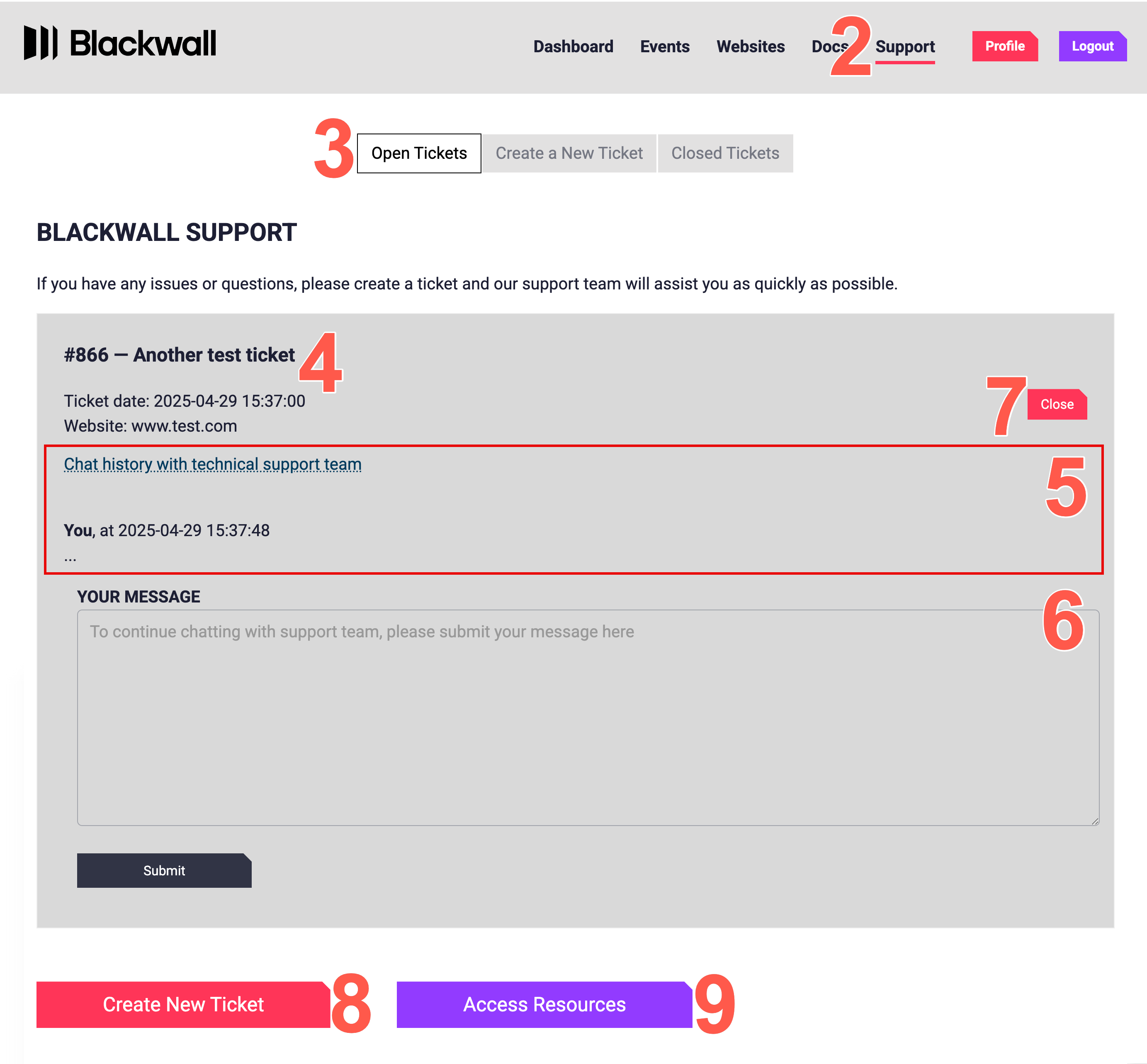
- From the secondary menu, click Open Tickets.
- From the list of tickets displayed on the page, find the ticket which you want to view.
- View information about your ticket.
- View the chat history for your ticket. Each message has a date/time stamp so that you can follow the logical order.
- In the YOUR MESSAGE text field, type a new message to add to your ticket.
- In the ATTACHMENTS section, optionally, click Choose files to add up to ten files to the ticket. Only add files that help explain your question.
- Click Submit to submit your new message and/or attached files.
- Optionally, you can select CLOSE to close the ticket if you no longer require assistance.
- Optionally, press Create New Ticket to submit a new ticket. For instructions, refer to the next section on this page.
- Optionally, press Access Resources to open the Blackwall documentation portal.
Create a New Ticket
To create a new ticket for the attention of the Blackwall team:
- Ensure that you are logged into your Blackwall account.
- From the main navigation menu bar, click Support.
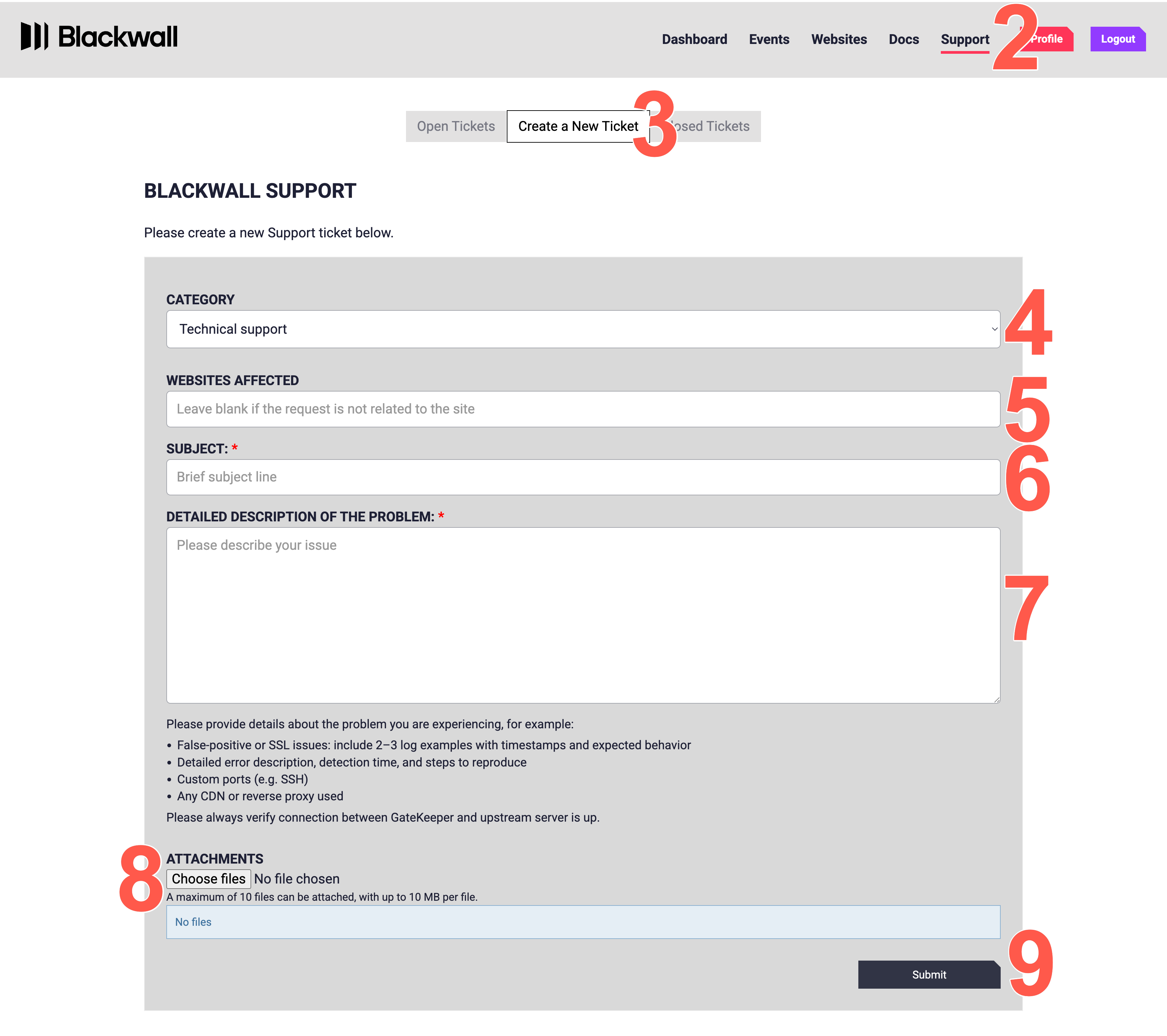
- From the secondary menu, click Create a New Ticket.
- From the dropdown field CATEGORY, select one of the following values:
- Technical support
- Billing questions
- Report a bug
- Suggest a feature
- From the dropdown field WEBSITES AFFECTED, select one of the website assets that you have already added to your account.
- In the SUBJECT field, type a brief heading that describes your request or issue.
- In the DETAILED DESCRIPTION OF THE PROBLEM, describe in detail the nature of your request or issue.
- In the ATTACHMENTS section, optionally, click Choose files to add up to ten files to the ticket. Only add files that help explain your question.
- Click SUBMIT to submit your ticket.
Note
The more information that you provide in your feedback or issue, the better that we can assist you.
Closed Tickets
To view your tickets that have been moved to closed status:
- Ensure that you are logged into your Blackwall account.
- From the main navigation menu bar, click Support.
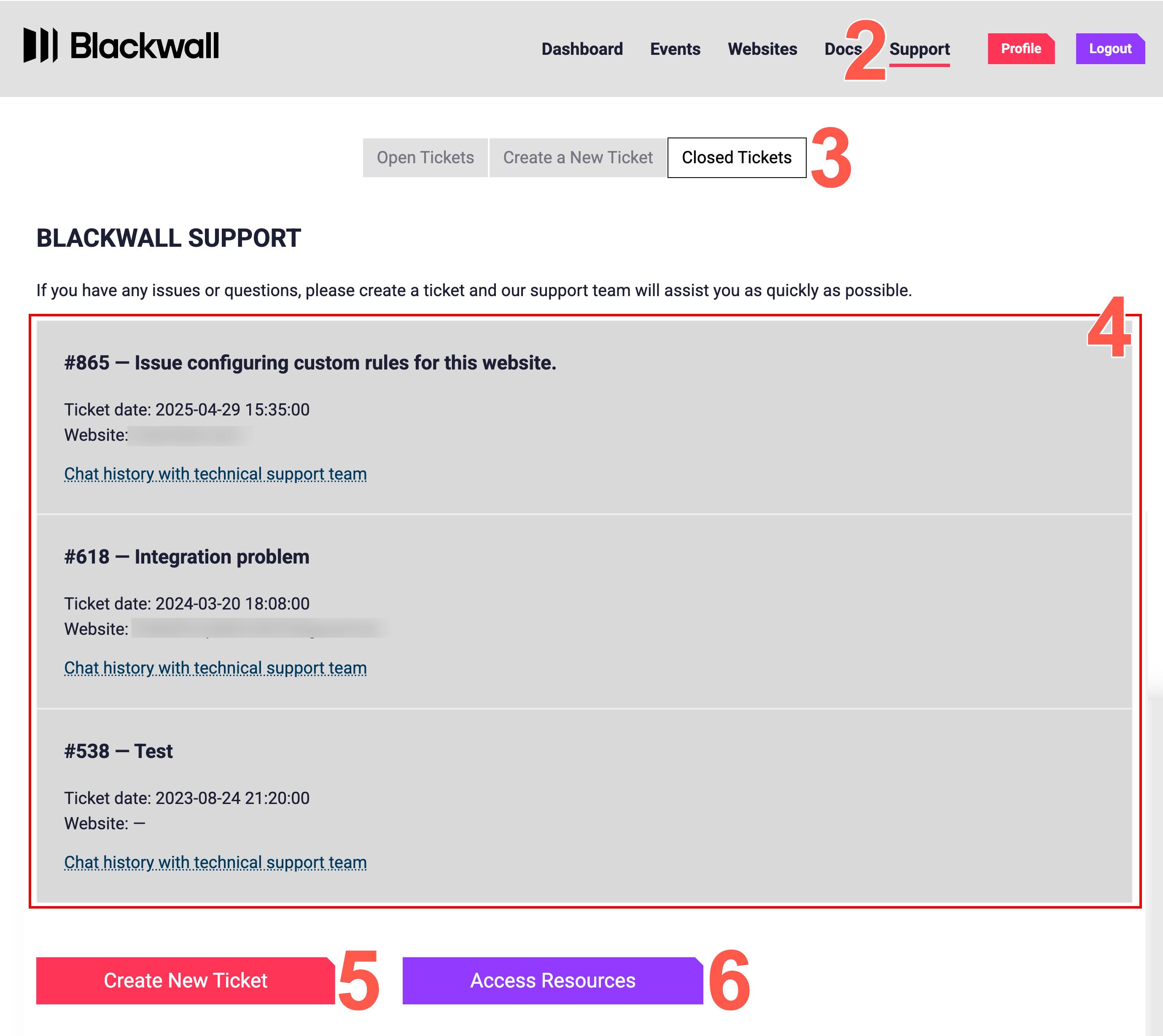
- From the secondary menu, click Closed Tickets.
- From the list of closed tickets displayed on the page, find the ticket which you want to view. Note that you cannot submit a new message or update for messages in a closed status.
- Click Reopen to make your ticket active again.
- Optionally, press Create New Ticket to submit a new ticket. For instructions, refer to the previous section on this page.
- Optionally, press Access Resources to open the Blackwall documentation portal.